Why the back office needs a second factor
The PrestaShop back office gives access to orders, customer data, modules and the store’s configuration. A password that has been stolen, reused on another site or guessed is all it takes to get in.
With two-factor authentication, signing in requires a second proof after the password: a one-time code, a passkey or a hardware key. A password on its own is no longer enough. After six wrong codes in a row, Sentinel blocks the address trying to sign in and records the attempt.
What Sentinel does
- Three methods to choose from. A TOTP app (a six-digit code that changes every thirty seconds), a passkey (the fingerprint, face or PIN that already unlocks the computer or phone) or a FIDO2 security key plugged in over USB or tapped over NFC.
- Ten single-use recovery codes, shown once, to sign in without the phone.
- Trusted devices, off by default: an administrator sets a duration from 0 to 90 days, and every employee can revoke their own devices.
- A record in the security logs: wrong codes, recovery codes used, sign-ins from a trusted device.
The authenticator QR code is drawn by the browser: nothing is sent to an outside service during setup, and the store keeps the secret encrypted.
Requiring it across the team
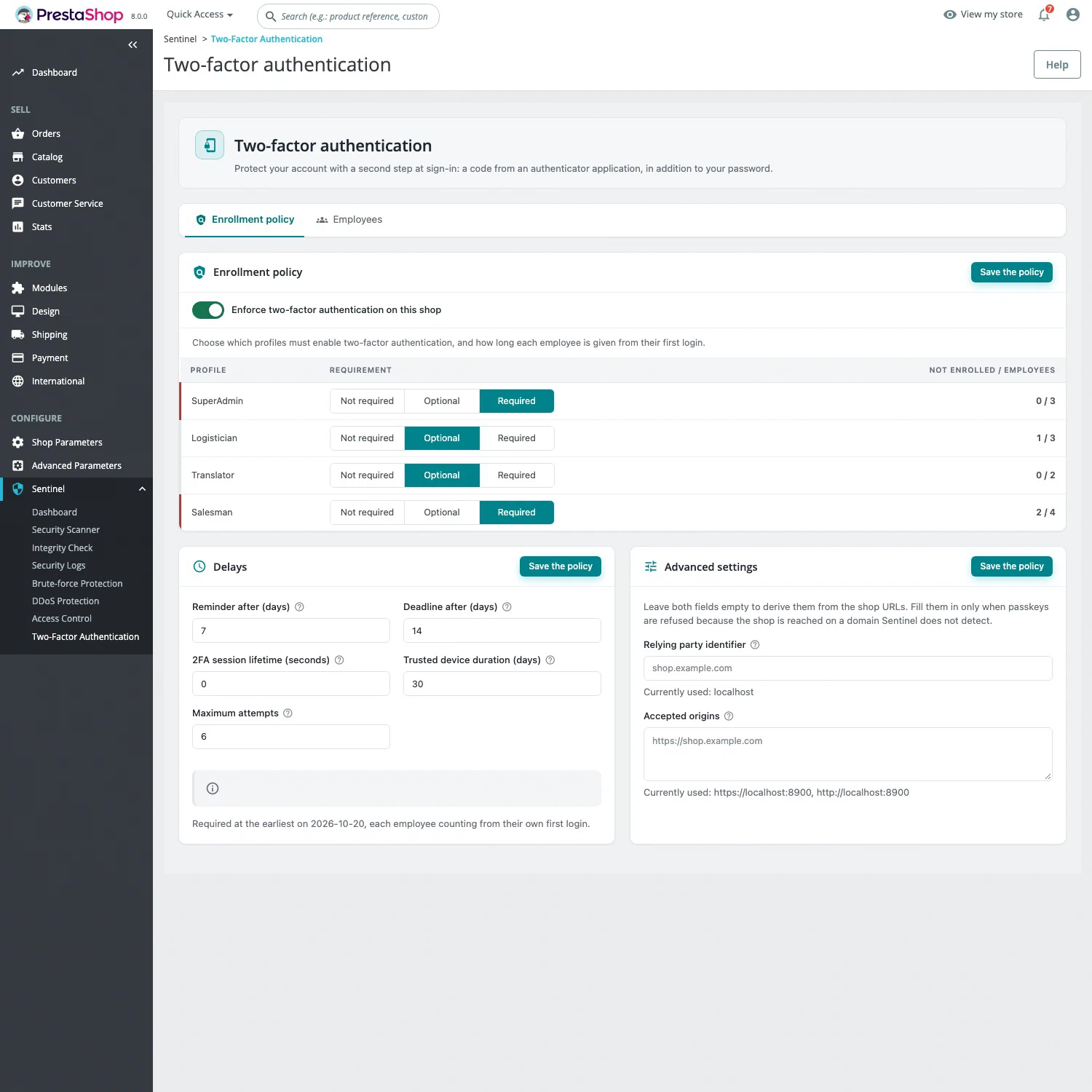
In Sentinel, each employee profile gets a requirement: Not required, Optional or Required. An employee in scope first sees a banner, then a reminder screen after 7 days, and enrollment becomes mandatory after 30 days. Both delays are adjustable, and the countdown starts for each employee at their first sign-in.
The Employees tab shows who is protected, with which methods, and who is falling behind. A SuperAdmin can revoke an employee’s methods, sessions or devices, force a new enrollment or grant a temporary exemption. Employees with no access at all to the Sentinel menu can still enroll.
Free or Pro?
Two-factor authentication is entirely free: methods, recovery codes, trusted devices, per-profile policy and team overview are all part of Sentinel Free. Sentinel Pro adds other protections, such as the web application firewall and brute-force protection, but nothing in two-factor authentication is held back in Free.
Getting started
- Install Sentinel on your PrestaShop 1.7.7 to 9.2 store (see compatibility).
- Each employee opens their profile, clicks Set up two-factor authentication, then Add a method, and follows the wizard.
- They download or print their ten recovery codes.
- To make it mandatory, an administrator sets the profiles and delays under Sentinel > Configuration, in the Two-factor authentication tab.
Limits worth knowing
- During the grace period, an employee in scope still signs in with a password alone: the countdown is a notice, not protection.
- On a trusted device, the password alone is enough until the trust expires or is revoked. Keep that option for devices nobody else uses.
- A passkey is tied to the back-office domain: across several domains, each one needs its own passkey, whereas a TOTP app works everywhere.
- If the second-factor check itself fails, Sentinel keeps the back office reachable and logs the incident, rather than locking out the whole team.
To narrow the attack surface further, pair two-factor authentication with back-office access control by IP, which is also free.